Brand Monitoring
Last updated: July 8, 2026
Track the advertisers that matter most to your business — whether they're high-value brands, sensitive categories, direct-sold targets, or advertisers that should no longer be appearing.
Overview
The Brand Monitoring Dashboard gives ad operations teams a dedicated way to create a curated list of advertiser domains to watch across your organization. Rather than scanning broad brand-performance reports manually, your team can focus on the specific advertisers you care about and receive email alerts when meaningful changes happen.
Monitors are scoped to your active organization, so everyone with access to the feature sees the same shared list.
Adding a Monitor
To begin tracking an advertiser, click + Add Monitor in the top-right corner of the dashboard (or use Bulk Add to add multiple domains at once).
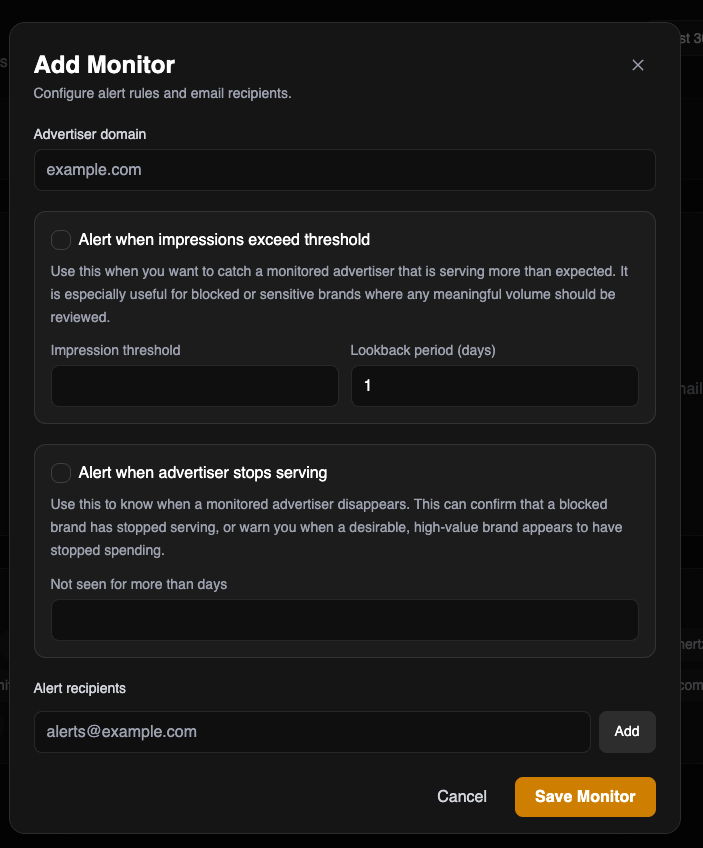
This opens the monitor configuration panel where you can configure the monitor as follows:
Advertiser domain: the domain of the advertiser you want to track (e.g., examplebrand.com)
Alert when impressions exceed threshold: enable this to receive an email notification when the advertiser exceeds a defined impression count over a lookback period you specify (in days). This is especially useful for blocked or sensitive brands where any meaningful volume should be reviewed.
Example: "Alert me if examplebrand.com serves more than 10,000 impressions over the last 1 day."
Alert when advertiser stops serving: enable this to be notified when a monitored advertiser has not been seen for a specified number of days. This can confirm that a blocked brand has stopped appearing, or flag when a high-value advertiser appears to have stopped spending.
Example: "Alert me if valuablebrand.com has not been seen for more than 3 days."
Alert recipients: each monitor can have its own recipient list, so alerts go directly to the right ad ops, yield, sales, or account management stakeholders
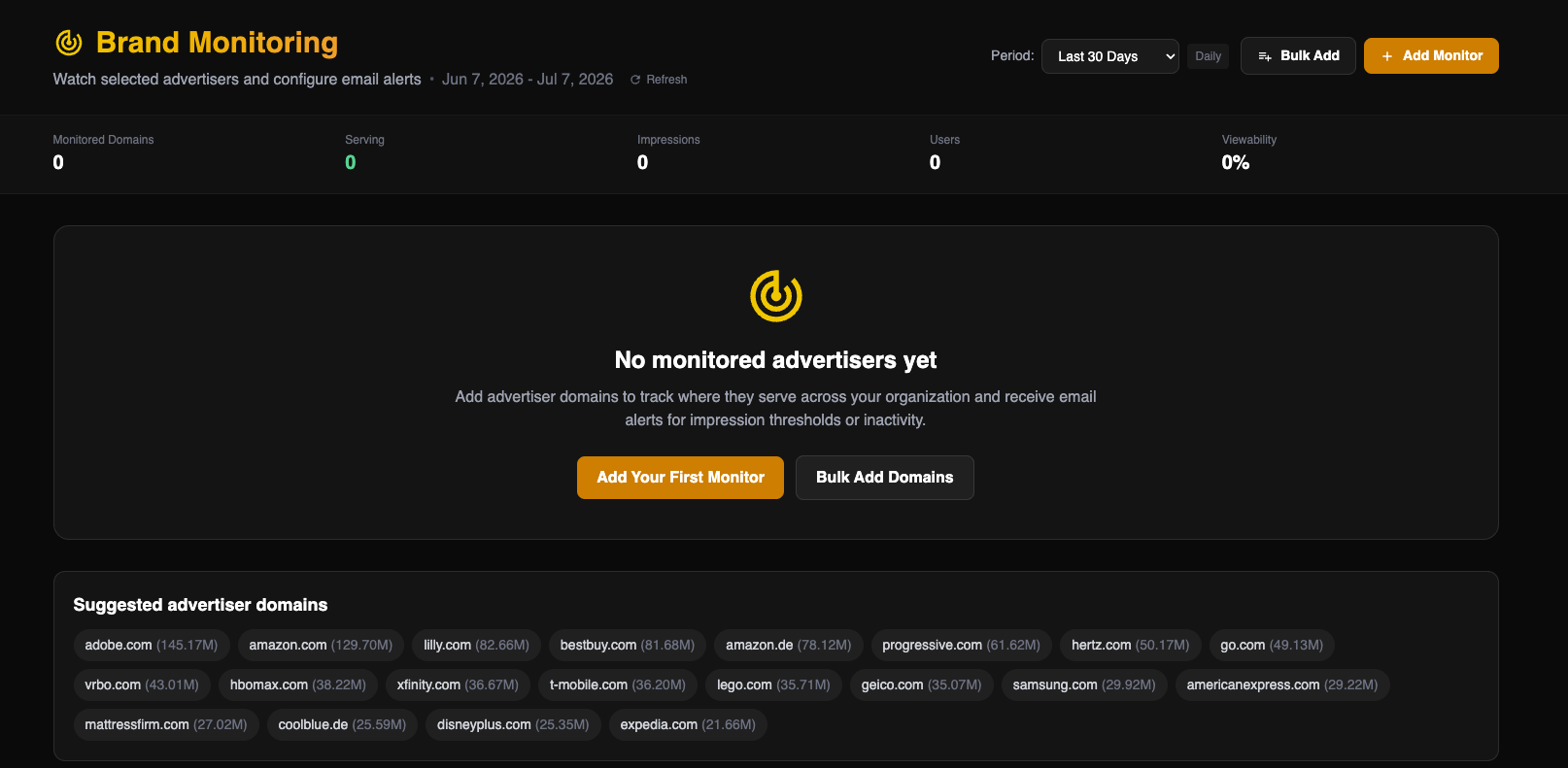
The dashboard also displays a Suggested advertiser domains section at the bottom of the page, showing common advertisers observed across your organization along with their impression volume.

Dashboard Reporting
Summary View
Once you've added monitors, the dashboard shows Brand Performance-style reporting filtered to your monitored domains only. The summary bar at the top displays aggregate counts for your monitored list.
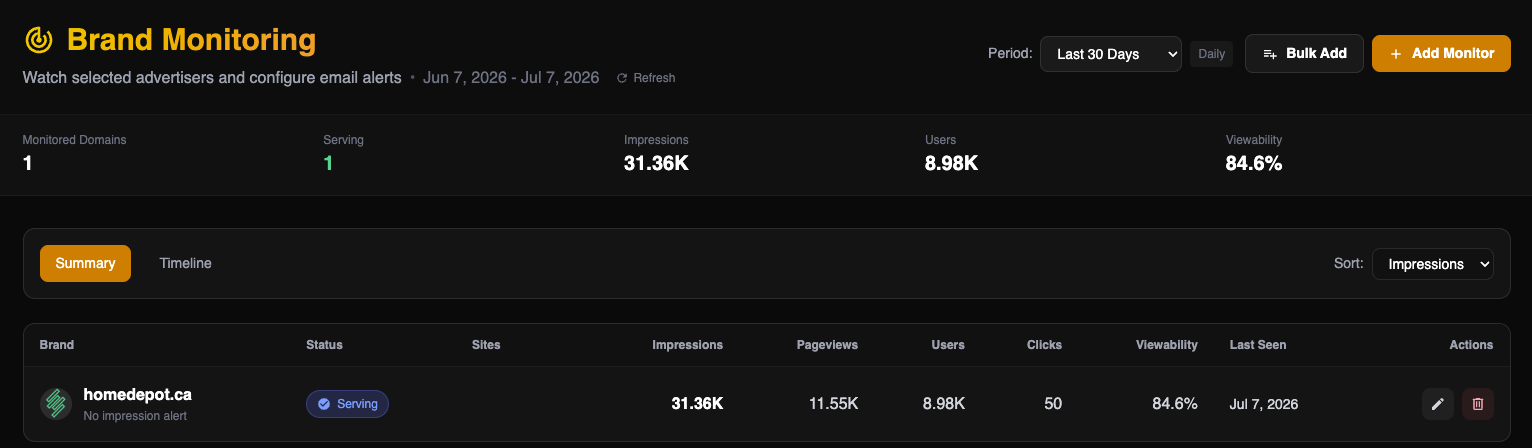
The brand table includes a Summary view and a Timeline view. The Summary view (shown above) lists each monitored advertiser along with its serving status, the publisher sites where it appeared, impression and user counts, clicks, viewability, and the date it was last observed. You can sort the table by any of these columns using the Sort dropdown. Each row also includes edit and delete actions on the right side.
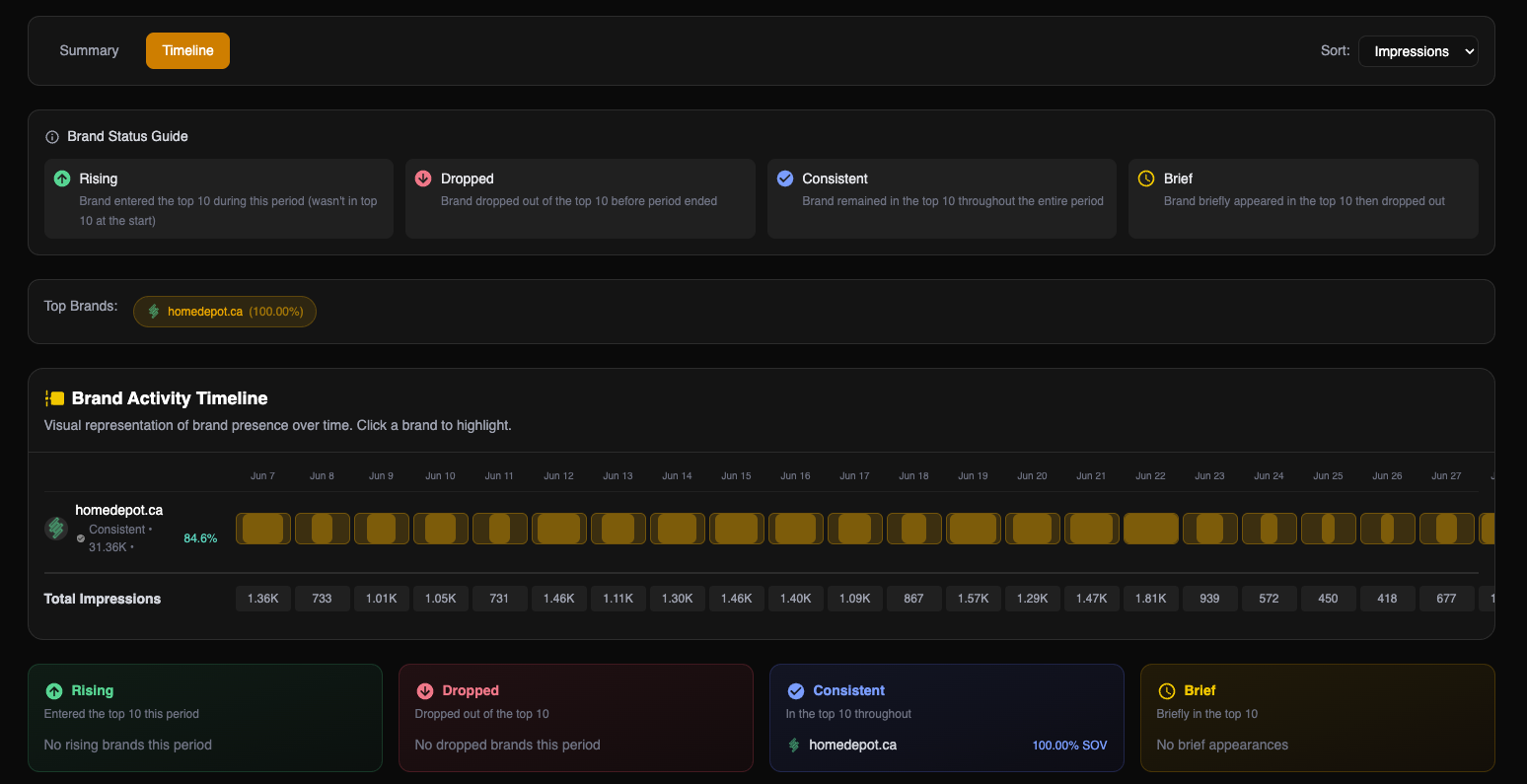
For each monitored advertiser, the dashboard also shows which publisher domains the brand appeared on. If a brand appears across many sites, a pop-out view gives the full list. The timeline view uses the same visual model as the existing Brand Performance page, making it easy to spot when monitored advertisers appear, disappear, or shift over time.
Timeline View
Switch to the Timeline tab to see a visual representation of brand presence over time. The timeline uses the same model as the Brand Performance page, making it easy to spot when monitored advertisers appear, disappear, or shift in volume.